

FAQ KORP PROMETHIUM
- Blueetoh connection
You can connect your headset via Bluetooth to your PC, cell phone or Nintendo Switch. Consult the user manual here to find out how to connect the headset: https://www.the-g-lab.tech/wp-content/uploads/2023/09/Manuel-KORP-Promenthium.pdf
- USB WIRELESS connection
To use your Korp Prométhium wirelessly on your console: PS4-PS5, you need to plug the USB dongle into your console and connect your headset to the dongle. https://www.the-g-lab.tech/wp-content/uploads/2023/09/Manuel-KORP-Promenthium.pdf
- Wired connection
Your headset is wired to all devices.
Caution: HEADSET RGB DOES NOT WORK IN WIRELESS mode.
You need to insert the microphone into the Korp Prométhium for it to work.
Then click once on button 1 to make the microphone work.
Find all button correspondences here: https: //www.the-g-lab.tech/wp-content/uploads/2023/09/Manuel-KORP-Promenthium.pdf
Make sure that
- Your headphones are correctly set up as outgoing and incoming devices in the audio settings of your computer or console.
- Your headphones have been charged for 2 hours using the supplied charging cable.
- Your headset and microphone are switched on (see user manual here: https: //www.the-g-lab.tech/wp-content/uploads/2023/09/Manuel-KORP-Promenthium.pdf
The headset’s RGB only works wirelessly, so if you’re using wired headphones, it’s perfectly normal for the RGB not to work.
If your microphone is not recognized by your communications application, try selecting “Microphone Array” instead of the default selection.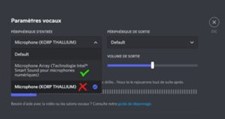
The headset is not compatible with Xbox
Breakage and defects due to wear and tear are not covered by The G-LAB two-year warranty.
We do not supply pads separately.