
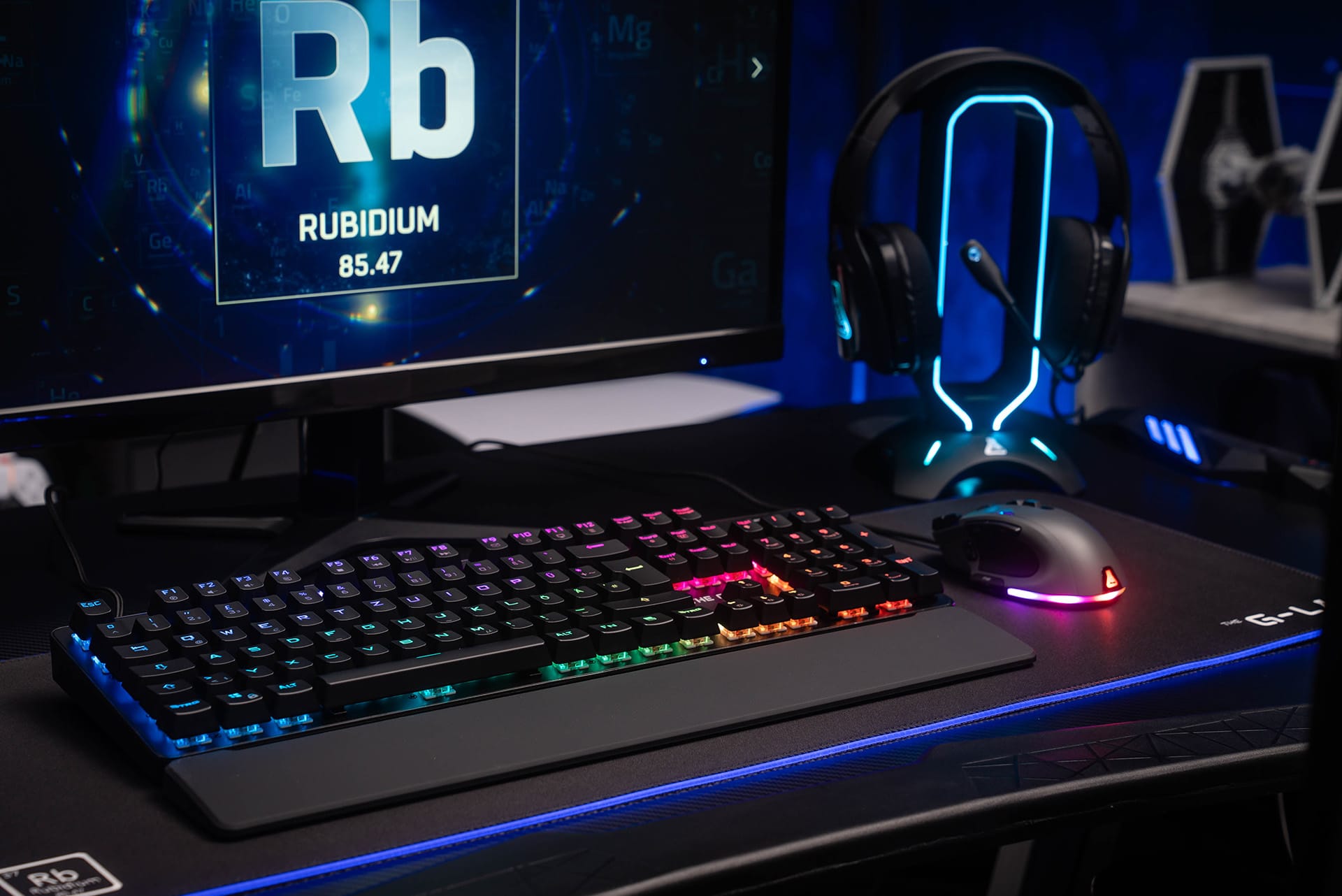
FAQ Keyz Rubidium E
Macros can be recorded using the software found here
The use of macros requires the software, which is only available on Windows.
They will therefore not be compatible with the console.
The FN+INS combination lets you change backlight effects from among those included with the keyboard.
Backlighting is also fully customizable via software.
Press FN+SUP repeatedly to navigate between the different fixed backlights.
You can consult all the combinations in the keyboard manual, available here.
- Check that the light is on by pressing the “On/off ☼” button.
- Increase lighting intensity with Fn + Page Up
- Install the keyboard software via the website, and activate/deactivate the lighting via the software.
- Try the FN + ESC combination, which will reset the keyboard and may solve your problem.
- Remove the key to check the switch and key status
- Try the FN + ESC combination, which will reset the keyboard and may solve your problem.
- Test the following (mechanical) manipulation:
- Remove the button to access the switch
- Using the tip of a pen, press down on each of the 4 corners of the switch on the colored part to check that the switch is properly engaged.
Press Fn+Z to swap WASD keys and arrow keys, and vice versa.
Pressing Fn+Windows activates the “Windows Lock” function, which locks the Windows key (very useful in games!). Repeat Fn+Windows to deactivate Windows Lock.
- Check that your computer is switched off and not in hibernation mode.
- Check your USB port power settings from your control panel
- In your computer’s boot bios, check the power options for your USB ports
We do not sell key sets separately, and we do not guarantee that keys purchased from a third-party vendor will be compatible. However, you can contact our customer service department for free replacement of several keys.
The Keyz Rubidium E features interchangeable switches to replace defective switches.
5 replacement switches are supplied inside the box, along with a clip for removing the switch.
It is strictly forbidden to use any switch other than the original ones supplied.
Step 1: Remove the key to access the switch Step 2: Grasp the edges of the switch with the pliers and pull gently Step 3: Insert the new switch and press gently with your fingers Step 4: Apply slight pressure to ensure that the switch is fully seated and replace the key.
The software available for download on our site is in zip format. To unzip them and start installation, you can use the Winrar software, available free of charge on the Internet.


